Type á, é, í, ó, ú, ñ, ü, ¿ and ¡ on a US keyboard: US-International (' then a gives á), Alt codes (ñ is Alt+0241), or Option on a Mac.
Spanish needs only a handful of special characters: five accented vowels, the ñ, the ü, and the opening marks ¿ and ¡. On a Spanish keyboard they are one or two keys away; on a US keyboard there are several ways to type them, from a keyboard setting to a short code.
The Spanish characters at a glance
| Character | Name | Examples |
|---|---|---|
| á é í ó ú | Acute accent (tilde) | está, café, aquí, canción, menú |
| ñ | Eñe | año, España |
| ü | Diaeresis (diéresis) | pingüino, vergüenza |
| ¿ ¡ | Opening question and exclamation marks | ¿Qué?, ¡Hola! |
Accents change words: "si" means "if" and "sí" means "yes"; "el" is "the" and "él" is "he". And "año" (year) is a very different word without its tilde.
On a US keyboard with Windows
The US-International layout
The most comfortable option if you write Spanish regularly. Add it once in Windows Settings (Time & language, then Language & region: add the "United States-International" keyboard to English), then switch with Windows + Space. Your keys stay where they are; a few of them become dead keys:
| Type | Then | You get |
|---|---|---|
| ' (apostrophe) | a, e, i, o or u | á, é, í, ó, ú |
| ~ (Shift + `) | n | ñ |
| " (Shift + ') | u | ü |
Right Alt also gives the characters directly: Right Alt + n gives ñ, Right Alt + / gives ¿ and Right Alt + 1 gives ¡. The catch: an apostrophe before a vowel now turns into an accent. To type a plain apostrophe or quotation mark, press the key, then Space.
Alt codes
They work without changing anything, on any Windows PC with a numeric keypad (Num Lock on): hold Alt, type the four digits on the keypad, release Alt.
| Character | Code | Character | Code |
|---|---|---|---|
| á | 0225 | ñ | 0241 |
| é | 0233 | Ñ | 0209 |
| í | 0237 | ü | 0252 |
| ó | 0243 | ¿ | 0191 |
| ú | 0250 | ¡ | 0161 |
Capitals have their own codes: Á 0193, É 0201, Í 0205, Ó 0211, Ú 0218 and Ü 0220.
On a laptop without a numeric keypad, use US-International or the symbols panel instead: Windows + period opens it, and its Ω tab lists accented letters.
On a Mac with a US keyboard
- Press and hold a letter: a small menu shows its accented versions, each with a number. Press the number, or click.
- Option shortcuts are faster once learned:
| Press | Then | You get |
|---|---|---|
| Option + E | a vowel | á, é, í, ó, ú |
| Option + N | n | ñ |
| Option + U | u | ü |
| Option + Shift + / | — | ¿ |
| Option + 1 | — | ¡ |
For a capital letter, add Shift to the second key: Option + N, then Shift + N gives Ñ.
On a phone or tablet
Press and hold a letter on the on-screen keyboard, then slide to the accented version: hold n for ñ, hold ? for ¿. If you write Spanish often, add a Spanish keyboard in your phone's settings: it has its own ñ key and corrects missing accents as you type.
On a Spanish keyboard
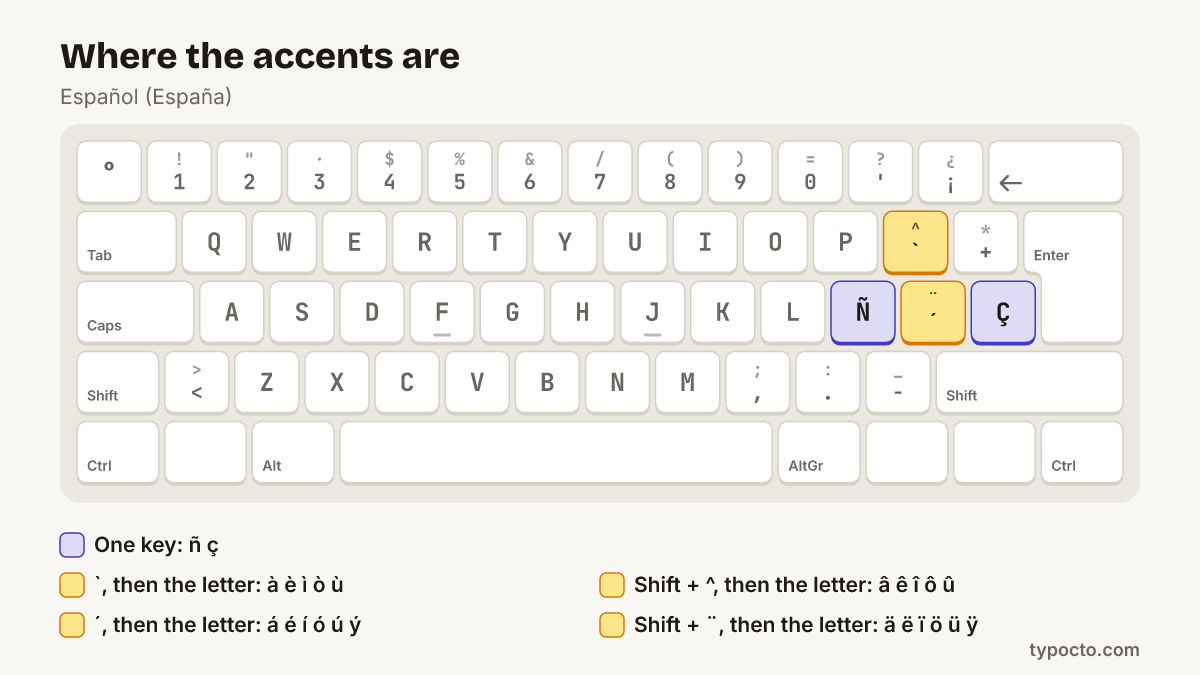
The Spanish and Latin American keyboards were made for these characters: ñ has its own key, next to L, and a dead key adds the accent to the next vowel. The ¿ and ¡ marks share one key, next to Backspace: on a Spanish keyboard ¡ is the plain key and ¿ needs Shift, on a Latin American keyboard it is the other way round. If you write Spanish every day, switching your computer to one of these layouts is the most comfortable long-term choice.
Which method should you choose?
- You write Spanish every day: a Spanish or Latin American keyboard layout.
- You write Spanish now and then: US-International on Windows, the Option shortcuts on a Mac.
- You need one ñ a week: Alt codes or press-and-hold.
Practise typing in Spanish
Typocto has a full touch-typing course and a Spanish speed test for Spanish and Latin American keyboards, in Spanish. The page cómo poner acentos en el teclado shows where each accent is on your keyboard and lets you practise them. The Spanish typing test uses real Spanish words, accents included.
For other languages, see the guides for French accents and German umlauts, or How to type accents on any keyboard.
Questions
How do I type ñ on a US keyboard?
On Windows, Alt+0241 on the numeric keypad, or ~ then n with the US-International layout. On a Mac, Option + N, then n, or hold the n key.
How do I type ¿ and ¡?
Alt+0191 and Alt+0161 on Windows, Right Alt + / and Right Alt + 1 with US-International, Option + Shift + / and Option + 1 on a Mac.
Why does my apostrophe turn into an accent?
Your keyboard is set to US-International, where the apostrophe is a dead key. Press it and then Space to get a plain apostrophe, or switch back to the US layout with Windows + Space.
Sources
Microsoft lists the Alt codes in Insert ASCII or Unicode Latin-based symbols and characters, and Apple explains the Mac methods in Enter characters with accent marks on Mac. Key combinations follow Microsoft's and Apple's documentation (November 2026).